How to Hard Reset (Wipe or Format) Xiaomi Mi Note

More often than not, you will need to wipe, factory reset or format your Xiaomi Mi Note when you forget the password, pattern lock or any other security barriers you may have set on your Mi Note to prevent unauthorised third-party access to your device.

It may also be necessary that you format, factory reset or wipe your Xiaomi Mi Note especially, when you notice a sudden change in your Xiaomi Mi Note performances in terms of its speed or level of applications deficiency.

Factory Reset Mi Note

Here, I discuss the step by step procedures involved in wiping, factory reset or formatting your Xiaomi Mi Note. NOTE: I- the methods discussed herein will erase all the data on your Xiaomi Mi Note, therefore, if need be, you should backup every necessary data on your Xiaomi Mi Note before you proceed. II- Your Xiaomi Mi Note may also end up getting stuck at FRP. FRP Lock which is an acronym for Factory Reset Protcetion is a security meansure that restricts access to your android device following a factory reset, hard reset or wipe.


How to Factory Reset your Xiaomi Mi Note

1. Power off your Xiaomi Mi Note. You may do this by pressing and holding the Power Button. If the battery can be removed by you, then; that's your best means.
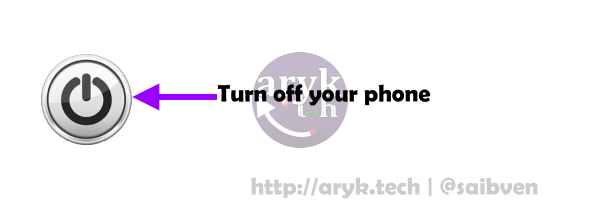
Factory Reset Mi Note -Step 1

2. Now, press and hold Volume Up (+) and Power Button for few seconds or until Xiaomi logo appears on your Mi Note screen.
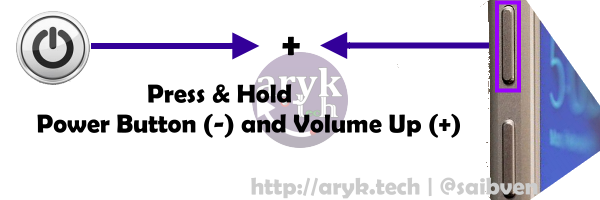
Factory Reset Mi Note -Step 2

3. As soon as Mi Logo appears on your Mi Note screen, release both keys that were held down in Step 2 above.

4. Using Volume Keys to navigate, select ENGLISH (or, your prefered language) and use Power Key to make your selection.

5. Scroll to Wipe Reset and select it. Confirm your selection.

6. Scroll down to select Wipe All Data.

7. Now, confirm the whole process by scrolling to YES and select it.

8. You may now wait patiently for your Xiaomi Mi Note to initialize and complete the Factory Reset/Data Wipe Operation.


NOTE:

1. At the Step 3, you may release ONLY the POWER KEY and continue pressing the VOLUME UP (+) KEY until Xiaomi Mi recovery screen shows up.


How to Format (Wipe) your Xiaomi Mi Note: Method 2

1. If your Xiaomi Mi Note is Switched off, begin by Switching On the phone.

Format Wipe Mi Note -Step 1

2. From your Xiaomi Mi Note go to Settings > Backup & Reset.

3. Tap Factory Data Reset then, select Reset Device.

4. Choose Erase Everything. Be sure that all the data on your Xiaomi Mi Note will be erased/formatted following this step.

5. Select OK to confirm the whole process.

6. Now, wait patiently while your Xiaomi Mi Note initializes and performs the Data Wipe (Factory Reset) operation until it is completed.

When the whole process is complete, your Xiaomi Mi Note will be rebooted hence, your Xiaomi Mi Note has been reseted to factory defaults settings and you are now welcomed by the brand new Mi Note.


If after wiping or formating your Mi Note, you still encounter issues or find yourself at FRP Lock screen, you could use these tutorials to help yourself out.


Intex Aqua N17 Stock ROM Firmware (Flash File) Download

Intex Android Stock ROM Firmware Flash File

Here is a Intex Aqua N17 Stock ROM Firmware which can be used to load and flash stock firmware on any Intex Aqua N17 of this exact variant. Any MTK Flash tools can download and flash this Intex Aqua N17 flash file on your Aqua N17 so long as that MTK Flash Tool supports MTK Scatter File.


Since most major software malfunctions on any MTK Android devices can only be corrected by flashing, this Aqua N17 flash file, if Miniperly used, can unbrick (debrick) your Aqua N17 and also corrects any software issues your Intex Aqua N17 may currently have. Also, keep in mind that when you load stock firmware on your Intex Aqua N17 using any MTK flash tool, your Intex Aqua N17 will be reset to factory defaults settings and by that, definately, your UserData will be lost including contacts, messages and others.


Note: If your Aqua N17 is already bricked and you want to unbrick it, you will need to pay closer attention to the tutorials contained below here.


Intex Aqua N17 Stock ROM Firmware Download Link(s)

1. Intex Aqua N17 (v03) Stock ROM


How to Flash Stock Firmware On Intex Aqua N17

1. Download your Intex Aqua N17 stock ROM firmware from the link above.


2. Extract the Intex Aqua N17 Firmware you downloaded from the link above onto a folder on your PC.


3. Download and install MTK android device drivers on your PC. You may skip this step if you have installed MTK drivers on your PC already otherwise, download MTK drivers here


4. Now, choose either of the tools listed below here to load the stock firmware on your Intex Aqua N17 .


See video tutorial here: How to Flash MTK Android Devices Video Tutorial


Note

1. Each of the tools listed above contained step by step guides with illustrated pictures on how to flash stock firmware on your Intex Aqua N17 .

2. If your device is bricked already, I recommend that you use NCK Box or SP Flash. Both are the safest toolS for flashing MTK Android devices.

3. If you require any further assistance, simply drop your comment detailing the issue(s) and I shall help you revive your Intex Aqua N17 , if need be.

How to Hard Reset (Wipe or Format) Xiaomi Mi Note Pro

More often than not, you will need to wipe, factory reset or format your Xiaomi Mi Note Pro when you forget the password, pattern lock or any other security barriers you may have set on your Mi Note Pro to prevent unauthorised third-party access to your device.

It may also be necessary that you format, factory reset or wipe your Xiaomi Mi Note Pro especially, when you notice a sudden change in your Xiaomi Mi Note Pro performances in terms of its speed or level of applications deficiency.


Factory Reset Mi Note Pro

Here, I discuss the step by step procedures involved in wiping, factory reset or formatting your Xiaomi Mi Note Pro. NOTE: I- the methods discussed herein will erase all the data on your Xiaomi Mi Note Pro, therefore, if need be, you should backup every necessary data on your Xiaomi Mi Note Pro before you proceed. II- Your Xiaomi Mi Note Pro may also end up getting stuck at FRP. FRP Lock which is an acronym for Factory Reset Protcetion is a security meansure that restricts access to your android device following a factory reset, hard reset or wipe.


How to Factory Reset your Xiaomi Mi Note Pro

1. Power off your Xiaomi Mi Note Pro. You may do this by pressing and holding the Power Button. If the battery can be removed by you, then; that's your best means.

Factory Reset Mi Note Pro -Step 1

2. Now, press and hold Volume Up (+) and Power Button for few seconds or until Xiaomi logo appears on your Mi Note Pro screen.

Factory Reset Mi Note Pro -Step 2

3. As soon as Mi Logo appears on your Mi Note Pro screen, release both keys that were held down in Step 2 above.

4. Using Volume Keys to navigate, select ENGLISH (or, your prefered language) and use Power Key to make your selection.

5. Scroll to Wipe Reset and select it. Confirm your selection.

6. Scroll down to select Wipe All Data.

7. Now, confirm the whole process by scrolling to YES and select it.

8. You may now wait patiently for your Xiaomi Mi Note Pro to initialize and complete the Factory Reset/Data Wipe Operation.


NOTE:

1. At the Step 3, you may release ONLY the POWER KEY and continue pressing the VOLUME UP (+) KEY until Xiaomi Mi recovery screen shows up.


How to Format (Wipe) your Xiaomi Mi Note Pro: Method 2

1. If your Xiaomi Mi Note Pro is Switched off, begin by Switching On the phone.

Format Wipe Mi Note Pro -Step 1

2. From your Xiaomi Mi Note Pro go to Settings > Backup & Reset.

3. Tap Factory Data Reset then, select Reset Device.

4. Choose Erase Everything. Be sure that all the data on your Xiaomi Mi Note Pro will be erased/formatted following this step.

5. Select OK to confirm the whole process.

6. Now, wait patiently while your Xiaomi Mi Note Pro initializes and performs the Data Wipe (Factory Reset) operation until it is completed.

When the whole process is complete, your Xiaomi Mi Note Pro will be rebooted hence, your Xiaomi Mi Note Pro has been reseted to factory defaults settings and you are now welcomed by the brand new Mi Note Pro.


If after wiping or formating your Mi Note Pro, you still encounter issues or find yourself at FRP Lock screen, you could use these tutorials to help yourself out.
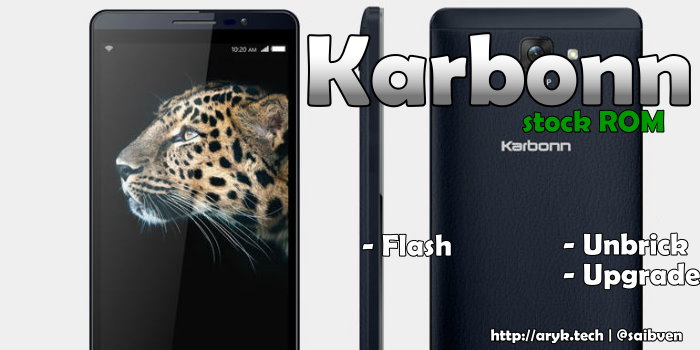
Karbonn Platinum P9 Stock ROM Firmware (Flash File) Download

Karbonn Android Stock ROM Firmware Flash File

Here is a Karbonn Platinum P9 Stock ROM Firmware which can be used to load and flash stock firmware on any Karbonn Platinum P9 of this exact variant. Any MTK Flash tools can download and flash this Karbonn Platinum P9 flash file on your Platinum P9 so long as that MTK Flash Tool supports MTK Scatter File.


Since most major software malfunctions on any MTK Android devices can only be corrected by flashing, this Platinum P9 flash file, if properly used, can unbrick (debrick) your Platinum P9 and also corrects any software issues your Karbonn Platinum P9 may currently have. Also, keep in mind that when you load stock firmware on your Karbonn Platinum P9 using any MTK flash tool, your Karbonn Platinum P9 will be reset to factory defaults settings and by that, definately, your UserData will be lost including contacts, messages and others.


Note: If your Platinum P9 is already bricked and you want to unbrick it, you will need to pay closer attention to the tutorials contained below here.


Karbonn Platinum P9 Stock ROM Firmware Download Link(s)

1. Karbonn Platinum P9 (v1020 11012015) Stock ROM


How to Flash Stock Firmware On Karbonn Platinum P9

1. Download your Karbonn Platinum P9 stock ROM firmware from the link above.


2. Extract the Karbonn Platinum P9 Firmware you downloaded from the link above onto a folder on your PC.


3. Download and install MTK android device drivers on your PC. You may skip this step if you have installed MTK drivers on your PC already otherwise, download MTK drivers here


4. Now, choose either of the tools listed below here to load the stock firmware on your Karbonn Platinum P9 .


See video tutorial here: How to Flash MTK Android Devices Video Tutorial


Note

1. Each of the tools listed above contained step by step guides with illustrated pictures on how to flash stock firmware on your Karbonn Platinum P9 .

2. If your device is bricked already, I recommend that you use NCK Box or SP Flash. Both are the safest toolS for flashing MTK Android devices.

3. If you require any further assistance, simply drop your comment detailing the issue(s) and I shall help you revive your Karbonn Platinum P9 , if need be.

How to Hard Reset (Wipe or Format) Xiaomi Mi 4i

More often than not, you will need to wipe, factory reset or format your Xiaomi Mi 4i when you forget the password, pattern lock or any other security barriers you may have set on your Mi 4i to prevent unauthorised third-party access to your device.

It may also be necessary that you format, factory reset or wipe your Xiaomi Mi 4i especially, when you notice a sudden change in your Xiaomi Mi 4i performances in terms of its speed or level of applications deficiency.


Factory Reset Mi 4i

Here, I discuss the step by step procedures involved in wiping, factory reset or formatting your Xiaomi Mi 4i. NOTE: I- the methods discussed herein will erase all the data on your Xiaomi Mi 4i, therefore, if need be, you should backup every necessary data on your Xiaomi Mi 4i before you proceed. II- Your Xiaomi Mi 4i may also end up getting stuck at FRP. FRP Lock which is an acronym for Factory Reset Protcetion is a security meansure that restricts access to your android device following a factory reset, hard reset or wipe.


How to Factory Reset your Xiaomi Mi 4i

1. Power off your Xiaomi Mi 4i. You may do this by pressing and holding the Power Button. If the battery can be removed by you, then; that's your best means.

Factory Reset Mi 4i -Step 1

2. Now, press and hold Volume Up (+) and Power Button for few seconds or until Xiaomi logo appears on your Mi 4i screen.

Factory Reset Mi 4i -Step 2

3. As soon as Mi Logo appears on your Mi 4i screen, release both keys that were held down in Step 2 above.

4. Using Volume Keys to navigate, select ENGLISH (or, your prefered language) and use Power Key to make your selection.

5. Scroll to Wipe Reset and select it. Confirm your selection.

6. Scroll down to select Wipe All Data.

7. Now, confirm the whole process by scrolling to YES and select it.

8. You may now wait patiently for your Xiaomi Mi 4i to initialize and complete the Factory Reset/Data Wipe Operation.


NOTE:

1. At the Step 3, you may release ONLY the POWER KEY and continue pressing the VOLUME UP (+) KEY until Xiaomi Mi recovery screen shows up.


How to Format (Wipe) your Xiaomi Mi 4i: Method 2

1. If your Xiaomi Mi 4i is Switched off, begin by Switching On the phone.

Format Wipe Mi 4i -Step 1

2. From your Xiaomi Mi 4i go to Settings > Backup & Reset.

3. Tap Factory Data Reset then, select Reset Device.

4. Choose Erase Everything. Be sure that all the data on your Xiaomi Mi 4i will be erased/formatted following this step.

5. Select OK to confirm the whole process.

6. Now, wait patiently while your Xiaomi Mi 4i initializes and performs the Data Wipe (Factory Reset) operation until it is completed.

When the whole process is complete, your Xiaomi Mi 4i will be rebooted hence, your Xiaomi Mi 4i has been reseted to factory defaults settings and you are now welcomed by the brand new Mi 4i.


If after wiping or formating your Mi 4i, you still encounter issues or find yourself at FRP Lock screen, you could use these tutorials to help yourself out.

Intex Aqua N4 Stock ROM Firmware (Flash File) Download

Intex Android Stock ROM Firmware Flash File

Here is a Intex Aqua N4 Stock ROM Firmware which can be used to load and flash stock firmware on any Intex Aqua N4 of this exact variant. Any MTK Flash tools can download and flash this Intex Aqua N4 flash file on your Aqua N4 so long as that MTK Flash Tool supports MTK Scatter File.


Since most major software malfunctions on any MTK Android devices can only be corrected by flashing, this Aqua N4 flash file, if Miniperly used, can unbrick (debrick) your Aqua N4 and also corrects any software issues your Intex Aqua N4 may currently have. Also, keep in mind that when you load stock firmware on your Intex Aqua N4 using any MTK flash tool, your Intex Aqua N4 will be reset to factory defaults settings and by that, definately, your UserData will be lost including contacts, messages and others.


Note: If your Aqua N4 is already bricked and you want to unbrick it, you will need to pay closer attention to the tutorials contained below here.


Intex Aqua N4 Stock ROM Firmware Download Link(s)

1. Intex Aqua N4 (v06) Stock ROM

2. Intex Aqua N4 (v09) Stock ROM


How to Flash Stock Firmware On Intex Aqua N4

1. Download your Intex Aqua N4 stock ROM firmware from the link above.


2. Extract the Intex Aqua N4 Firmware you downloaded from the link above onto a folder on your PC.


3. Download and install MTK android device drivers on your PC. You may skip this step if you have installed MTK drivers on your PC already otherwise, download MTK drivers here


4. Now, choose either of the tools listed below here to load the stock firmware on your Intex Aqua N4 .


See video tutorial here: How to Flash MTK Android Devices Video Tutorial


Note

1. Each of the tools listed above contained step by step guides with illustrated pictures on how to flash stock firmware on your Intex Aqua N4 .

2. If your device is bricked already, I recommend that you use NCK Box or SP Flash. Both are the safest toolS for flashing MTK Android devices.

3. If you require any further assistance, simply drop your comment detailing the issue(s) and I shall help you revive your Intex Aqua N4 , if need be.

How to Hard Reset (Wipe or Format) Xiaomi Redmi 2 Prime

More often than not, you will need to wipe, factory reset or format your Xiaomi Redmi 2 Prime when you forget the password, pattern lock or any other security barriers you may have set on your Redmi 2 Prime to prevent unauthorised third-party access to your device.

It may also be necessary that you format, factory reset or wipe your Xiaomi Redmi 2 Prime especially, when you notice a sudden change in your Xiaomi Redmi 2 Prime performances in terms of its speed or level of applications deficiency.


Factory Reset Redmi 2 Prime

Here, I discuss the step by step procedures involved in wiping, factory reset or formatting your Xiaomi Redmi 2 Prime. NOTE: I- the methods discussed herein will erase all the data on your Xiaomi Redmi 2 Prime, therefore, if need be, you should backup every necessary data on your Xiaomi Redmi 2 Prime before you proceed. II- Your Xiaomi Redmi 2 Prime may also end up getting stuck at FRP. FRP Lock which is an acronym for Factory Reset Protcetion is a security meansure that restricts access to your android device following a factory reset, hard reset or wipe.


How to Factory Reset your Xiaomi Redmi 2 Prime

1. Power off your Xiaomi Redmi 2 Prime. You may do this by pressing and holding the Power Button. If the battery can be removed by you, then; that's your best means.

Factory Reset Redmi 2 Prime -Step 1

2. Now, press and hold Volume Up (+) and Power Button for few seconds or until Xiaomi logo appears on your Redmi 2 Prime screen.

Factory Reset Redmi 2 Prime -Step 2

3. As soon as Mi Logo appears on your Redmi 2 Prime screen, release both keys that were held down in Step 2 above.

4. Using Volume Keys to navigate, select ENGLISH (or, your prefered language) and use Power Key to make your selection.

5. Scroll to Wipe Reset and select it. Confirm your selection.

6. Scroll down to select Wipe All Data.

7. Now, confirm the whole process by scrolling to YES and select it.

8. You may now wait patiently for your Xiaomi Redmi 2 Prime to initialize and complete the Factory Reset/Data Wipe Operation.


NOTE:

1. At the Step 3, you may release ONLY the POWER KEY and continue pressing the VOLUME UP (+) KEY until Xiaomi Mi recovery screen shows up.


How to Format (Wipe) your Xiaomi Redmi 2 Prime: Method 2

1. If your Xiaomi Redmi 2 Prime is Switched off, begin by Switching On the phone.

Format Wipe Redmi 2 Prime -Step 1

2. From your Xiaomi Redmi 2 Prime go to Settings > Backup & Reset.

3. Tap Factory Data Reset then, select Reset Device.

4. Choose Erase Everything. Be sure that all the data on your Xiaomi Redmi 2 Prime will be erased/formatted following this step.

5. Select OK to confirm the whole process.

6. Now, wait patiently while your Xiaomi Redmi 2 Prime initializes and performs the Data Wipe (Factory Reset) operation until it is completed.

When the whole process is complete, your Xiaomi Redmi 2 Prime will be rebooted hence, your Xiaomi Redmi 2 Prime has been reseted to factory defaults settings and you are now welcomed by the brand new Redmi 2 Prime.


If after wiping or formating your Redmi 2 Prime, you still encounter issues or find yourself at FRP Lock screen, you could use these tutorials to help yourself out.